
Appearance
Code quality (Embold) Jira Connect Installation & Setup Guide
ML Server Setup
- Go to https://codequality.browserstack.com/self-managed/v1/portal/.
- Log in with your Code quality credentials and open the Releases section.
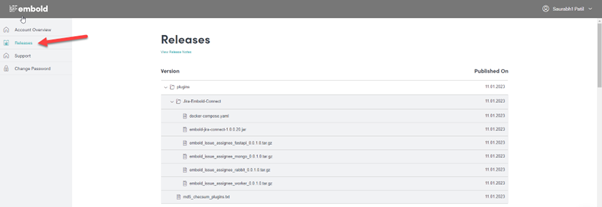
- Download the following four Docker images, the
docker-compose.yaml, and the Jira plugin (JIRA-Embold-connect) from the release section:
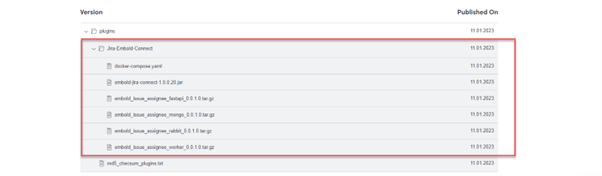
- Files to download:
embold_issue_assignee_fastapi_0.0.1.0.tar.gzembold_issue_assignee_mongo_0.0.1.0.tar.gzembold_issue_assignee_rabbit_0.0.1.0.tar.gzembold_issue_assignee_worker_0.0.1.0.tar.gzembold-jira-connect-1.0.0.20.jardocker-compose.yaml
- Verify MD5 checksums using the
md5_checksum_pluginsfile. - Load each image:
docker load --input <image-file>- Ensure
docker-compose.yamlis present. - Start services:
docker-compose up -d- After startup, browse to
http://<your_ip>:8000/docs. - You should see the API documentation screen (see screenshot below).
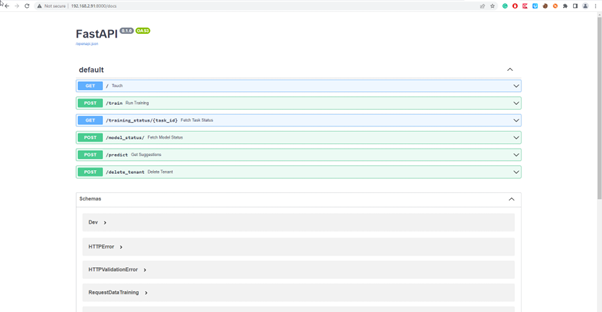
- MongoDB URL:
http://<your_ip>:27017/ - ML server URL:
http://<your_ip>:8000/
Jira Plugin Setup
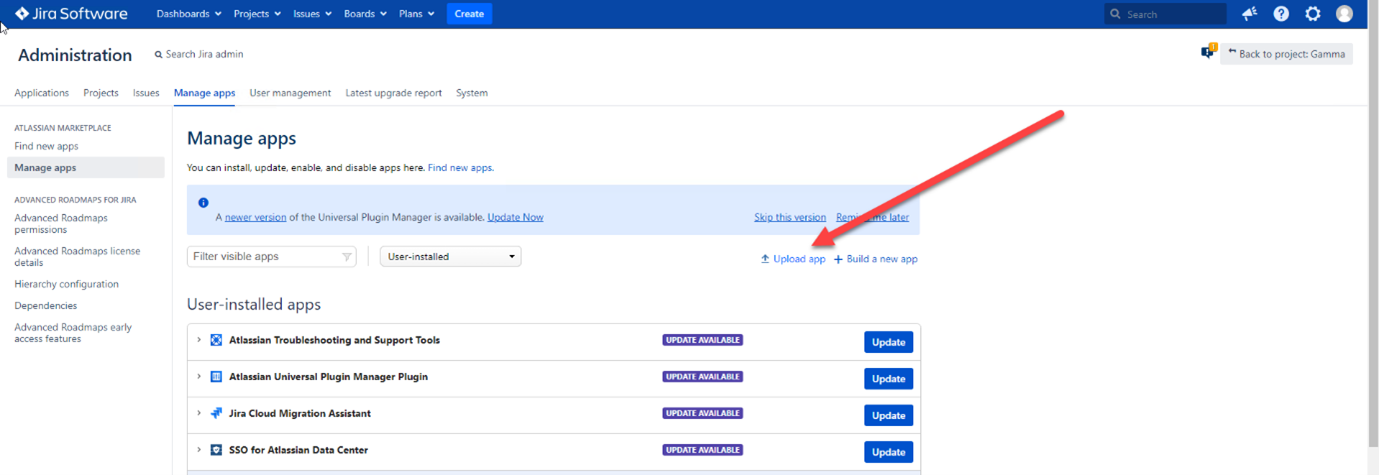
- Install the plugin manually by uploading the
.jarfile from the Jira administration section.
- After installation, open project settings in Jira. An Code quality Configuration option appears.
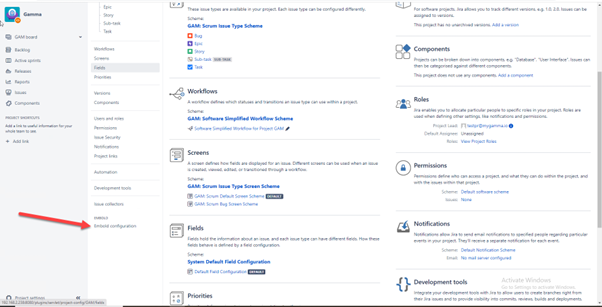
- Click Code quality Configuration to open the settings panel.
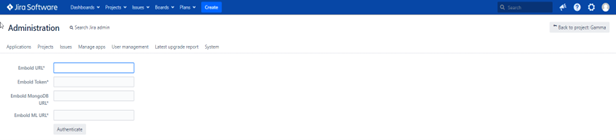
- Enter the Code quality server URL, Code quality Access Token this guide, ML server URL, and MongoDB URL.
- Click Authenticate.
- For more details, see the Jira plugin documentation.