
Appearance
Database Backup and Restore
Protect your BrowserStack Code Quality database with proper backup and restore procedures.
Prerequisites
NOTE
Docker volume mapping (e.g., /home/${USER}/BrowserStackCodeQuality/gamma_data:/opt/gamma_data) is mandatory for backups to persist on the host system.
- Ensure version parity between source and destination machines
- Stop services on destination machine before restoration
- Require admin privileges and knowledge of installation directory
- Verify Docker volume mapping is configured correctly
Database Backup Methods
Option A: UI-Based Scheduled Backups
Configure automatic backups through the web interface administration panel:
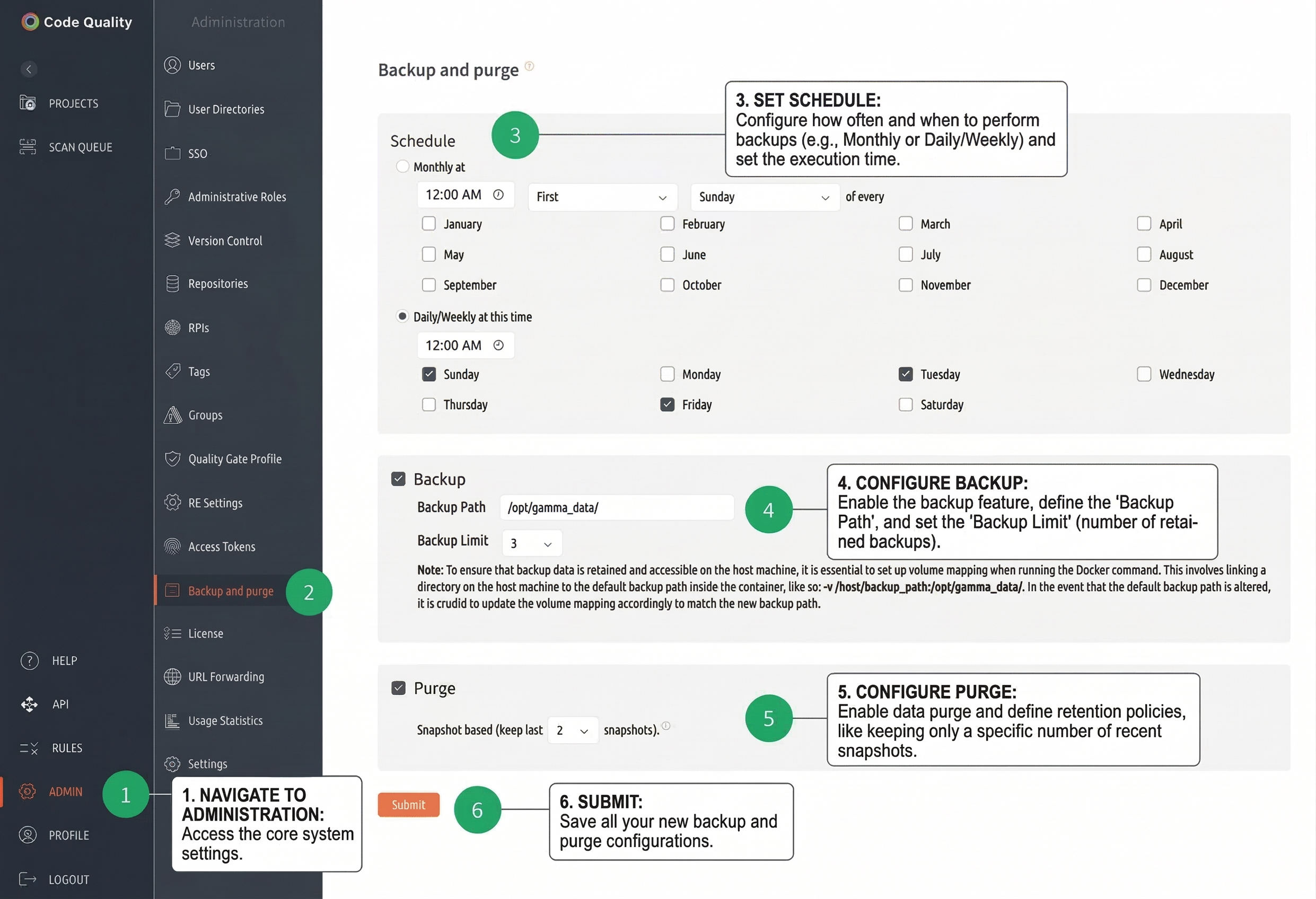
Step-by-Step Configuration:
Navigate to Administration: Access the core system settings
- Click ADMIN in the left sidebar
- Select Backup and purge from the administration menu
Set Schedule (Step 3): Configure how often and when to perform backups
- Choose between Monthly or Daily/Weekly schedules
- Set the execution time (e.g., 12:00 AM)
- For monthly backups: Select specific months to run
- For daily/weekly: Choose specific days of the week
Configure Backup (Step 4): Enable the backup feature and define settings
- Check the Backup checkbox to enable
- Backup Path: Set to
/opt/gamma_data/(default container path) - Backup Limit: Set number of retained backups (e.g., 3 for keeping 3 recent backups)
Configure Purge (Step 5 Optional): Enable data purge and define retention policies
- Check the Purge checkbox to enable automatic cleanup
- Snapshot based (keep last X snapshots): Set retention number (e.g., 2 snapshots)
Submit (Step 6): Save all your new backup and purge configurations
- Click Submit to apply the settings
- Backup will run according to the configured schedule
Generated Files Location:
- Backup files are stored in the mapped host directory
- Check:
/home/${USER}/BrowserStackCodeQuality/gamma_data/backup/ - Format:
.tar.gzcompressed archives with timestamps
Option B: CLI-Based Backup
Use the built-in backup script for manual or scripted backups:
bash
docker exec -it <container_name_or_id> /opt/gamma/gamma_ui/dbscripts/scripts/backup_restore.sh
Backup Flow:
- Select Choice (B) for Backup
- Select Choice (D) for Database backup
- Follow prompts to specify backup location and filename
- Backup file saved to mapped volume directory
Database Restore Methods
Database Restore Methods
Pre-Restore Verification
WARNING
Critical Steps: Always verify backup integrity and create a safety backup before restoration.
bash
# Verify backup file integrity
if [[ -f "gamma_backup.sql" ]]; then
    head -10 gamma_backup.sql | grep -q "PostgreSQL database dump" && echo " Backup file appears valid"
else
    echo " Backup file not found"
fi

# Check current database status
docker exec BrowserStackCodeQuality psql -U postgres -l
CLI-Based Restore
Method 1: Using Built-in Script
bash
docker exec -it BrowserStackCodeQuality /opt/gamma/gamma_ui/dbscripts/scripts/backup_restore.sh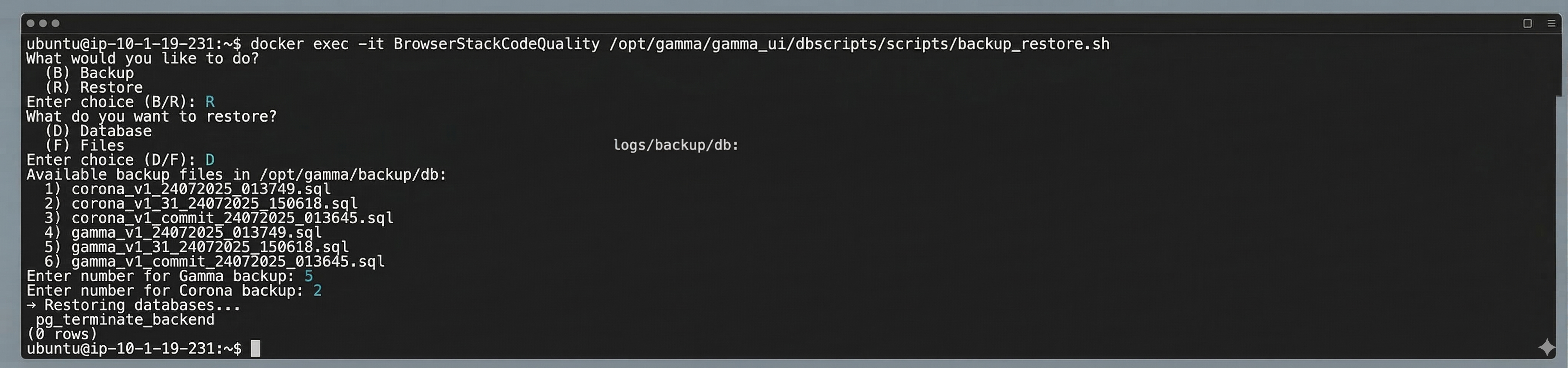
Restore Flow:
- Select Choice (R) for Restore
- Select Choice (D) for Database restore
- Safety Backup: When prompted "Create backup before restore? (y/n)", enter
y - Provide path to backup file (e.g.,
/opt/gamma_data/backup/gamma_backup.sql) - Confirm restore operation
Method 2: Direct PostgreSQL Restore
bash
# Stop services to prevent data corruption
docker exec BrowserStackCodeQuality supervisorctl stop all

# Restore gamma database
docker exec BrowserStackCodeQuality psql -U postgres -d gamma -c "DROP SCHEMA public CASCADE; CREATE SCHEMA public;"
docker exec BrowserStackCodeQuality psql -U postgres -d gamma -f /opt/gamma_data/backup/gamma_backup.sql

# Restore corona database
docker exec BrowserStackCodeQuality psql -U postgres -d corona -c "DROP SCHEMA public CASCADE; CREATE SCHEMA public;"
docker exec BrowserStackCodeQuality psql -U postgres -d corona -f /opt/gamma_data/backup/corona_backup.sql

# Start services
docker exec BrowserStackCodeQuality supervisorctl start all
Post-Restore Validation
bash
# Verify database restoration success
docker exec BrowserStackCodeQuality psql -U postgres -d gamma -c "
    SELECT
        schemaname,
        COUNT(*) as table_count
    FROM pg_tables
    WHERE schemaname = 'public'
    GROUP BY schemaname;"

# Check data integrity
docker exec BrowserStackCodeQuality psql -U postgres -d gamma -c "SELECT COUNT(*) as project_count FROM projects;"
docker exec BrowserStackCodeQuality psql -U postgres -d corona -c "SELECT COUNT(*) as scan_count FROM scan_results;"

# Test application functionality
curl -f http://localhost:3000/health || echo "Application health check failed"
Database Backup Verification
Verify Backup Script Availability
bash
# Check if backup script exists in container
docker exec BrowserStackCodeQuality ls -la /opt/gamma/gamma_ui/dbscripts/scripts/backup_restore.sh

# Alternative: Check for PostgreSQL tools
docker exec BrowserStackCodeQuality which pg_dump
docker exec BrowserStackCodeQuality which psql
Test Database Connection
bash
# Verify database connectivity
docker exec BrowserStackCodeQuality psql -U postgres -d gamma -c "SELECT version();"
docker exec BrowserStackCodeQuality psql -U postgres -d corona -c "SELECT COUNT(*) FROM pg_tables;"

# Check database sizes before backup
docker exec BrowserStackCodeQuality psql -U postgres -d postgres -c "
SELECT
    datname as database_name,
    pg_size_pretty(pg_database_size(datname)) as size
FROM pg_database
WHERE datname IN ('gamma', 'corona');"
Alternative Backup Methods
Direct PostgreSQL Backup (if script unavailable):
bash
# Single database backup
docker exec BrowserStackCodeQuality pg_dump -U postgres --no-owner gamma > gamma_backup_$(date +%Y%m%d).sql
docker exec BrowserStackCodeQuality pg_dump -U postgres --no-owner corona > corona_backup_$(date +%Y%m%d).sql

# Combined backup with compression
docker exec BrowserStackCodeQuality sh -c "pg_dump -U postgres --no-owner gamma | gzip > /opt/gamma_data/backup/gamma_$(date +%Y%m%d).sql.gz"
docker exec BrowserStackCodeQuality sh -c "pg_dump -U postgres --no-owner corona | gzip > /opt/gamma_data/backup/corona_$(date +%Y%m%d).sql.gz"
Automated Database Backups
Comprehensive Backup Script
Create /opt/browserstack-cq-backup.sh:
bash
#!/bin/bash
# BrowserStack Code Quality Database Backup Script

# Configuration
CONTAINER_NAME="BrowserStackCodeQuality"
BACKUP_BASE_DIR="/home/${USER}/BrowserStackCodeQuality/gamma_data/backup"
RETENTION_DAYS=7
LOG_FILE="$BACKUP_BASE_DIR/backup.log"
DATE=$(date +%Y%m%d_%H%M%S)

# Create backup directory
mkdir -p "$BACKUP_BASE_DIR"

# Logging function
log_message() {
    echo "$(date '+%Y-%m-%d %H:%M:%S') - $1" | tee -a "$LOG_FILE"
}

# Backup function
perform_backup() {
    log_message "Starting database backup for $CONTAINER_NAME"

    # Check container status
    if ! docker ps --format '{{.Names}}' | grep -q "^${CONTAINER_NAME}$"; then
        log_message "ERROR: Container $CONTAINER_NAME is not running"
        exit 1
    fi

    # Create timestamped backup
    BACKUP_DIR="$BACKUP_BASE_DIR/${DATE}"
    mkdir -p "$BACKUP_DIR"

    # Backup gamma database
    if docker exec "$CONTAINER_NAME" pg_dump -U postgres --no-owner gamma -f "/opt/gamma_data/backup/${DATE}/gamma.sql"; then
        log_message " Gamma database backup successful"
    else
        log_message " Gamma database backup failed"
        exit 1
    fi

    # Backup corona database
    if docker exec "$CONTAINER_NAME" pg_dump -U postgres --no-owner corona -f "/opt/gamma_data/backup/${DATE}/corona.sql"; then
        log_message " Corona database backup successful"
    else
        log_message " Corona database backup failed"
        exit 1
    fi

    # Create compressed archive
    cd "$BACKUP_BASE_DIR"
    tar -czf "db_backup_${DATE}.tar.gz" "${DATE}/" && rm -rf "${DATE}/"

    log_message " Backup completed: db_backup_${DATE}.tar.gz"
}

# Cleanup old backups
cleanup_old_backups() {
    log_message "Cleaning up backups older than $RETENTION_DAYS days"
    find "$BACKUP_BASE_DIR" -name "db_backup_*.tar.gz" -mtime +$RETENTION_DAYS -delete
    find "$BACKUP_BASE_DIR" -name "*.sql" -mtime +$RETENTION_DAYS -delete
}

# Main execution
perform_backup
cleanup_old_backups
log_message "Backup process completed successfully"
Cron Schedule Setup
bash
# Make script executable
chmod +x /opt/browserstack-cq-backup.sh

# Add to crontab for daily backups at 2 AM
(crontab -l 2>/dev/null; echo "0 2 * * * /opt/browserstack-cq-backup.sh >> /var/log/browserstack-cq-backup.log 2>&1") | crontab -

# Weekly backup (Sundays at 1 AM)
(crontab -l 2>/dev/null; echo "0 1 * * 0 /opt/browserstack-cq-backup.sh weekly >> /var/log/browserstack-cq-weekly-backup.log 2>&1") | crontab -

# View current cron jobs
crontab -l
Backup Troubleshooting
Common Issues and Solutions
Permission Denied Errors:
bash
# Check container permissions
docker exec BrowserStackCodeQuality ls -la /opt/gamma_data/backup/

# Fix permissions if needed
docker exec BrowserStackCodeQuality chmod 755 /opt/gamma_data/backup/
docker exec BrowserStackCodeQuality chown -R postgres:postgres /opt/gamma_data/backup/
Disk Space Issues:
bash
# Check available disk space
df -h /home/${USER}/BrowserStackCodeQuality/

# Check backup directory size
du -sh /home/${USER}/BrowserStackCodeQuality/gamma_data/backup/

# Clean up old backups manually
find /home/${USER}/BrowserStackCodeQuality/gamma_data/backup/ -name "*.sql" -mtime +30 -delete
Database Connection Issues:
bash
# Test PostgreSQL connectivity
docker exec BrowserStackCodeQuality pg_isready -U postgres

# Check PostgreSQL service status
docker exec BrowserStackCodeQuality supervisorctl status | grep postgres

# Restart PostgreSQL if needed
docker exec BrowserStackCodeQuality supervisorctl restart postgresql
Backup Script Issues:
bash
# Test backup script manually
docker exec BrowserStackCodeQuality ls -la /opt/gamma/gamma_ui/dbscripts/scripts/

# Check script permissions
docker exec BrowserStackCodeQuality test -x /opt/gamma/gamma_ui/dbscripts/scripts/backup_restore.sh && echo "Script is executable" || echo "Script is not executable"
Best Practices
- Test Restores: Verify backup integrity by testing restore procedures quarterly
- Version Consistency: Ensure backup and restore environments use identical BrowserStack Code Quality versions
- Monitor Success: Log backup operations and set up alerts for failures
- Secure Storage: Store backups in secure, encrypted locations
- Retention Policy: Maintain appropriate backup retention (daily: 7 days, weekly: 4 weeks, monthly: 3 months)
Troubleshooting
Backup Fails:
- Verify Docker container is running and accessible
- Check disk space in backup directory
- Ensure proper permissions on backup directory
Restore Fails:
- Confirm backup file integrity and format
- Verify database is accessible and not corrupted
- Check that services are stopped during restore
Related Documentation
- File Backup and Restore – Application file backups
- Updates Guide – Version upgrade procedures
- Environment Variables – Configuration settings