
Appearance
SAML 2.0 Configuration Guide
Complete guide for configuring SAML-based Single Sign-On (SSO) authentication with BrowserStack Code Quality (Embold) for enterprise identity providers like Okta, Azure Active Directory, OneLogin, and Ping Identity.
Overview
SAML (Security Assertion Markup Language) 2.0 is the enterprise standard for SSO authentication. It enables secure, encrypted communication between BrowserStack Code Quality (Service Provider) and your corporate Identity Provider (IdP), allowing users to authenticate using their existing corporate credentials while maintaining enterprise security standards.
Key Benefits of SAML SSO
- ** Enhanced Security**: Encrypted SAML assertions with digital signatures
- ** Seamless Integration**: Works with all major enterprise identity providers
- ** Automated User Management**: Just-in-time user provisioning and group sync
- ** Audit Compliance**: Complete audit trails for authentication events
- ️ Advanced Access Control: Fine-grained role mapping and permissions
Prerequisites & Requirements
Before configuring SAML SSO, ensure you have:
Administrative Access
- Identity Provider Admin: Full admin rights to your IdP (Okta, Azure AD, etc.)
- BrowserStack Code Quality Admin: Account Administrator role in the platform
- Network Access: Connectivity between IdP and BrowserStack Code Quality server
️ Security Requirements
- SSL Certificate: Valid SSL certificate installed on BrowserStack Code Quality server
- Domain Configuration: Proper DNS configuration for your domain
- Firewall Rules: Appropriate network access rules configured
- Time Synchronization: NTP configured on all systems (critical for SAML timing)
Information Gathering Checklist
Collect the following information before starting:
- [ ] BrowserStack Code Quality server domain/URL
- [ ] IdP administrative portal access credentials
- [ ] List of user groups/roles to be mapped
- [ ] Email domains for users who will access the system
- [ ] Certificate requirements (if custom certificates needed)
Detailed Configuration Steps
Step 1: Configure Your Identity Provider (IdP)
The configuration varies by IdP, but the core concepts remain the same. Here are detailed guides for major providers:
Okta Configuration
Create SAML Application
- Log into Okta Admin Console
- Navigate to Applications → Applications → Create App Integration
- Select "SAML 2.0" and click Next
General Settings
App name: BrowserStack Code Quality
App logo: (Optional - upload your logo)
SAML Settings
Single sign on URL: https://your-domain.com/saml/acs
Audience URI (SP Entity ID): https://your-domain.com/saml/metadata
Default RelayState: (Leave blank)
Name ID format: EmailAddress
Application username: Email
Attribute Statements (Required)
Name: email          | Value: user.email
Name: firstName      | Value: user.firstName
Name: lastName       | Value: user.lastName
Name: displayName    | Value: user.displayName
Group Attribute Statements (Optional but Recommended)
Name: groups         | Filter: Matches regex .*
Value: getFilteredGroups({"code_quality"}, "group.name", 50)
Azure Active Directory Configuration
Create Enterprise Application
- Go to Azure Portal → Azure Active Directory → Enterprise Applications
- Click "New application" → "Create your own application"
- Name: "BrowserStack Code Quality" → Select "Integrate any other application you don't find in the gallery"
Set Up Single Sign-On
- Select "Single sign-on" → "SAML"
- Click "Edit" on Basic SAML Configuration
Basic SAML Configuration
Identifier (Entity ID): https://your-domain.com/saml/metadata
Reply URL (ACS): https://your-domain.com/saml/acs
Sign on URL: https://your-domain.com/login
Logout URL: https://your-domain.com/saml/sls
User Attributes & Claims
Required claims:
- Name ID: user.mail (Email address format)

Additional claims:
- email: user.mail
- givenname: user.givenname
- surname: user.surname
- name: user.displayname
Group Claims (Optional)
- Add group claim → "Groups assigned to the application"
- Source attribute: "Group ID" or "sAMAccountName"
OneLogin Configuration
Add Application
- OneLogin Admin → Applications → Add App
- Search "SAML Test Connector (IdP w/ attr)" → Select
Configuration Tab
Display Name: BrowserStack Code Quality
Login URL: https://your-domain.com/login
SSO Tab
SAML Consumer URL: https://your-domain.com/saml/acs
SAML Audience: https://your-domain.com/saml/metadata
SAML Recipient: https://your-domain.com/saml/acs
Parameters Tab Add these parameters:
email → Email
firstName → First Name
lastName → Last Name
groups → Member Of (Multi-value parameter)
Step 2: Configure BrowserStack Code Quality Platform
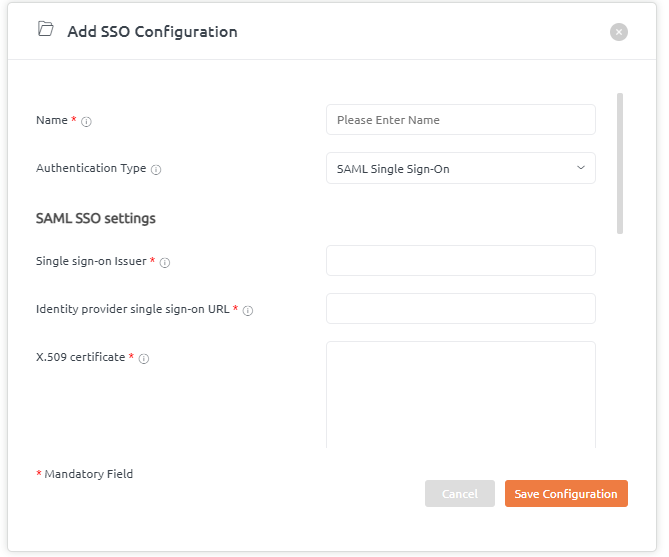
Access SAML Configuration
- Login as Account Administrator
- Navigate to: Settings → Security → SSO Configuration
- Select "SAML 2.0" as authentication method
Upload IdP Metadata
- Download metadata XML file from your IdP
- Upload the file using "Choose File" button
- Or manually enter IdP details if metadata unavailable:
IdP Entity ID: (From your IdP configuration)
SSO Service URL: (IdP Single Sign-On URL)
SLO Service URL: (IdP Single Logout URL)
X.509 Certificate: (IdP signing certificate)
Configure Attribute Mapping Map IdP attributes to BrowserStack Code Quality user fields:
yamlUser Attribute Mapping: email: "email" or "http://schemas.xmlsoap.org/ws/2005/05/identity/claims/emailaddress" first_name: "firstName" or "http://schemas.xmlsoap.org/ws/2005/05/identity/claims/givenname" last_name: "lastName" or "http://schemas.xmlsoap.org/ws/2005/05/identity/claims/surname" display_name: "displayName" or "http://schemas.xmlsoap.org/ws/2005/05/identity/claims/name"Enable Just-in-Time (JIT) Provisioning
yamlJIT Settings: Enable JIT user provisioning Update user attributes on each login Auto-activate new users ️ Default role for new users: Explorer (recommended)
yaml
group_mapping:
  "code_quality_admins": "Account Administrator"
  "code_quality_users": "Analyser"
  "code_quality_viewers": "Explorer"
Advanced Configuration
Custom Claims
- Define custom attributes.
- Map to user properties.
- Use in authorization flows.
Just-in-Time Provisioning
- Auto-create users on first login.
- Update user attributes.
- Assign default roles.
Session Management
- Configure session timeout.
- Enable “remember me” (optional).
- Force re-authentication when required.
Testing
Test SSO Flow
- Log out from the platform.
- Click "Sign in with SSO".
- Authenticate with your IdP.
- Verify successful login.
- Check mapped attributes.
Troubleshooting
Common issues and fixes:
- Invalid signature – Check certificates.
- Attribute missing – Verify mapping.
- Login loop – Clear cookies; check IdP session.
- Access denied – Check group mapping.
Security Best Practices
- Use HTTPS only.
- Validate SAML responses.
- Enable assertion encryption.
- Implement single logout.
- Rotate certificates regularly.
IdP-Specific Guides
Okta
Azure AD
- Create an Enterprise Application in the Azure portal.
- Select Set up single sign on > SAML.
- Populate Identifier (Entity ID) and Reply URL (ACS URL) from the platform.
OneLogin
- Add a Custom Connector (Advanced) application.
- Set SAML Consumer URL to the platform ACS URL.
- Download the IdP metadata and upload it to the platform.