
Appearance
Importing Certificates
Configure SSL/TLS certificates for two primary use cases: enabling HTTPS for the BrowserStack Code Quality UI, and trusting external services with self-signed certificates.
1. Prerequisites
Ensure you have the following before proceeding:
- [ ] Certificate file in Base64 encoded X.509 (PEM) format (e.g.,
server.crt) - [ ] Private key file in Base64 encoded X.509 (PEM) format (e.g.,
server.key)
NOTE
Files must be in PEM format. Binary DER or other formats are not supported.
2. Enabling HTTPS for the UI (Using Your Own Certs)
Enable secure HTTPS access to the BrowserStack Code Quality web interface using your own SSL certificates.
Step 1: Volume Mapping
Update the volumes: section in your docker-compose.yml to mount your certificates directory:
yaml
services:
  app:
    image: "browserstack/code-quality:1.9.36.0"
    container_name: BrowserStackCodeQuality
    volumes:
      - /home/${USER}/BrowserStackCodeQuality/certs:/opt/gamma/certs
      - /home/${USER}/BrowserStackCodeQuality/gamma_data:/opt/gamma_data
      - /home/${USER}/BrowserStackCodeQuality/logs:/opt/gamma/logs
IMPORTANT
The internal container path must always be /opt/gamma/certs.
Step 2: Environment Variables
Add SSL certificate variables to the environment: section in docker-compose.yml:
| Variable | Value | Description |
|---|---|---|
ssl_cert | /opt/gamma/certs/server.crt | Path to SSL certificate file |
ssl_key | /opt/gamma/certs/server.key | Path to private key file |
ssl_port | 443 | Port for HTTPS communication |
yaml
environment:
  - ACCEPT_EULA=Y
  - gamma_ui_public_host=https://your-domain.com
  - ssl_cert=/opt/gamma/certs/server.crt
  - ssl_key=/opt/gamma/certs/server.key
  - ssl_port=443
  - PGHOST=db
  - PGPORT=5432
  - PGUSER=postgres
  - PGPASSWORD=postgres
Set file permissions:
bash
chmod 644 /home/${USER}/BrowserStackCodeQuality/certs/server.crt
chmod 644 /home/${USER}/BrowserStackCodeQuality/certs/server.key
3. Trusting External SCM (Self-Signed Certificates)
Trust self-signed certificates from internal Git services (GitLab, GitHub, Gitea) running on-premise.
Step 1: Export the Certificate from Your Browser
- Open the external SCM URL in your browser.
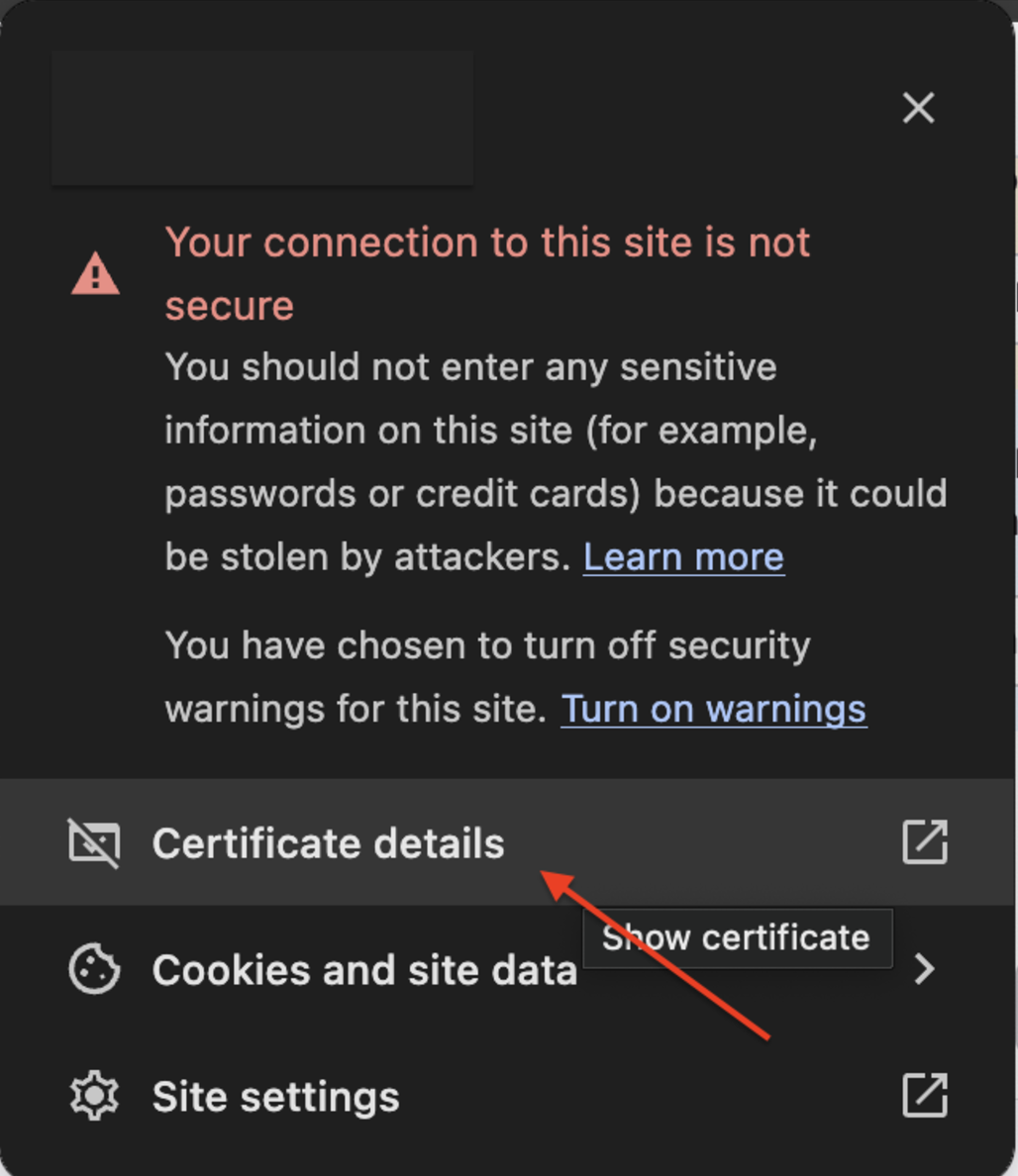
- Click the padlock icon and select Certificate details.

- Go to the Details tab and click Export. Save the file as a
.pem.
- Click Export, name the certificate, and save it as a
.pemfile.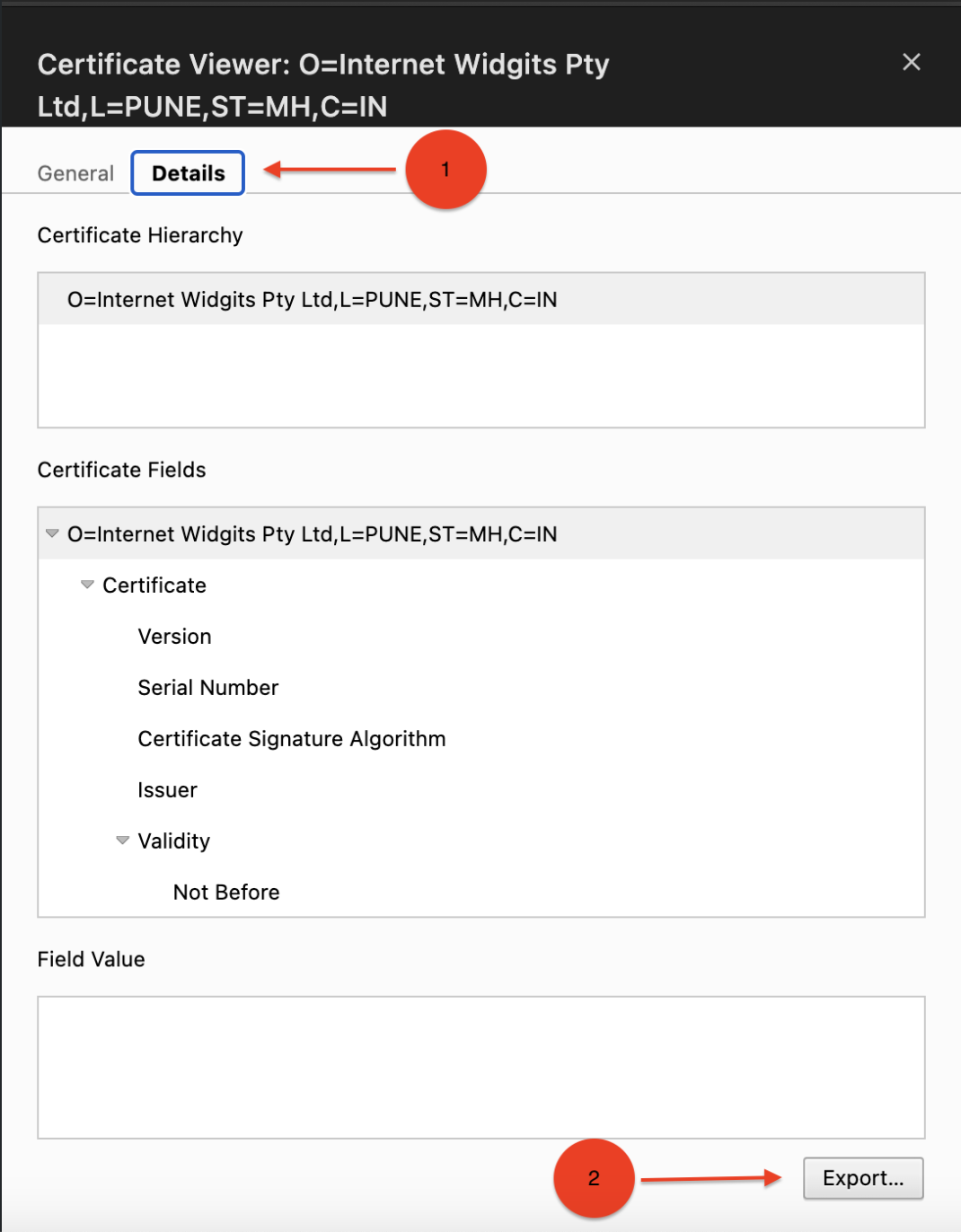
Step 2: Mount and Trust
Copy the exported .pem file to your mapped certificates directory:
bash
cp /path/to/exported-certificate.pem /home/${USER}/BrowserStackCodeQuality/certs/
chmod 644 /home/${USER}/BrowserStackCodeQuality/certs/exported-certificate.pem
Add these variables to the environment: section in docker-compose.yml:
yaml
environment:
  - ROOT_CERTS_PATH=/opt/gamma/certs
  - EMB_SCM_TRUST_SERVER_CERT=true
4. Apply Changes & Verify
Restart the container to apply the certificate configuration:
bash
docker-compose down
docker-compose up -d
Verify the deployment:
bash
# Check container status
docker-compose ps

# Verify HTTPS access
curl -k https://your-domain.com
Related Documentation
- Docker Deployment – Complete deployment guide
- Installation Guide – Installation overview
- System Requirements – Network and port requirements