
Appearance
Remote Scan (CLI Analysis)
Remote scanning allows you to analyze code on your local machine or build server and push the results to the BrowserStack Code Quality server.
The Fast Way: Pipeline Script
The easiest way to perform a remote scan is to use the auto-generated script from the UI.
- Navigate to your Repository List.
- Click the Three Dots (...) in the top-right corner.
- Select Pipeline Script.
- Copy the generated script and execute it directly in your terminal at the root of your project.
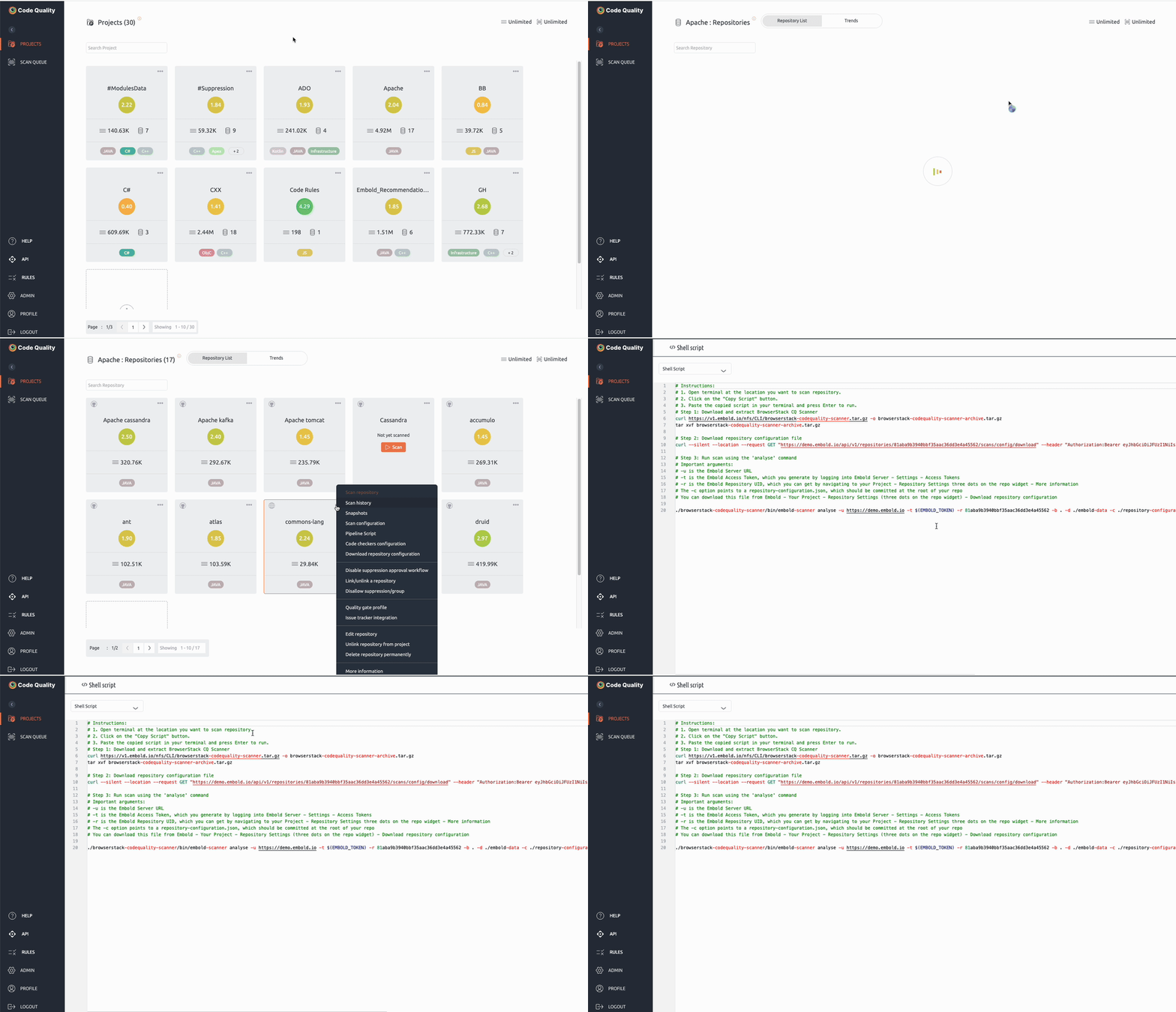 Click to enlarge
The Manual Way: Step-by-Step
If you need to integrate the scanner into a custom pipeline, follow these three steps.
Step 1: Download the Scanner
Download and extract the CLI tool to your workspace. You can download directly using the link or the command below:
Download browserstack-codequality-scanner.tar.gz
bash
curl https://v1.embold.io/nfs/CLI/browserstack-codequality-scanner.tar.gz -o scanner.tar.gz
tar xvf scanner.tar.gz
Step 2: Configure Scan Settings
Before running a scan, you can customize what gets analysed. From the repository settings in the UI you can:
- Enable or disable individual rules — tune the rule set to your team's standards
- Add file / folder exclusions — skip generated code, third-party libraries, or test fixtures
→ See Advanced Scan Configuration for a full walkthrough.
Step 3: Get Repository Configuration
Download your specific repository-configuration.json. To find your Repository UID (RepoUID)
bash
curl --location --request GET "https://{{EMBOLD_SERVER_URL}}/api/v1/repositories/{REPUID}/scans/config/download" \
--header "Authorization: Bearer {YOUR_ACCESS_TOKEN}" \
-o repository-configuration.json
Step 4: Execute the Scan
Viewing Available Commands and Options
To see all top-level commands supported by the scanner:
bash
./browserstack-codequality-scanner/bin/embold-scanner --helpOutput:
Embold Commands:
1. analyse
2. embold-trace
3. local-analyse
4. gated-commit

Run 'embold-scanner COMMAND --help' for more information on a command.
To see all options available for the analyse command:
bash
./browserstack-codequality-scanner/bin/embold-scanner analyse --helpRunning the Scan
Run the analyzer using the following command. Replace the placeholder values with your server details.
bash
./browserstack-codequality-scanner/bin/embold-scanner analyse \
  -u https://{{EMBOLD_SERVER_URL}} \
  -t $EMBOLD_TOKEN \
  -r {YOUR_REPO_UID} \
  -b . \
  -c ./repository-configuration.json \
  -d ./embold-data \
  -l ./embold-log \
  -sh ./embold-scanner-home
Minimum required flags: -u, -t, and -c.
Command Argument Reference
The table below lists all flags supported by the analyse command (as shown by analyse --help).
| Flag | Long Form | Description |
|---|---|---|
-u | --url | Server URL: Your BrowserStack Code Quality instance URL. |
-t | --token | Access Token: Generated under Settings > Access Tokens. |
-c | --scan-config-file | Config Path: Path to your repository-configuration.json or YAML scan settings file. |
-r | --repository-uid | Repository UID: Unique ID for the target repository in the Code quality UI. |
-b | --repository-base-dir | Base Path: Root directory of the source code to scan (usually .). |
-bc | --repository-base-dir | Build Commands: embold-trace build commands. |
-am | --analysis-mode | Analysis Mode: Override the analysis mode. |
-d | --data-dir | Data Directory: Temporary working directory for scan data. |
-sh | --scanner-home | Scanner Home: Path to the embold-scanner-home directory. |
-l | --scanner-logs | Logs Directory: Directory where scanner logs are written. |
-s | --snapshot-label | Snapshot Label: Label for the snapshot published to the Code quality UI. Accepts an environment variable. |
-sp | --scan-profile | Scan Profile: Path to a scan profile XML file. |
-si | --session-id | Session ID: Session identifier for the scan run. |
-ssu | --skip-source-upload | Skip Source Upload: Flag to skip uploading source files. |
-lf | --list-file-path | List File Path: Path to a file containing a list of files to scan. |
-rn | --revision-number | Revision Number: SCM revision (commit hash or number). |
-ci | --component-uid | Component UID: SCM component identifier. |
-sd | --snapshot-id | Snapshot ID: ID of an existing snapshot to update. |
-vd | --vcs_details | VCS Details: Version control system details. |
-st | --scm-token | SCM Token: Required for license scans on private repositories. |
-qg | --quality-gate-status | Quality Gate: Show quality gate status after scan. |
-nc | --new-code | New Code: Analyse new code only (currently supports code coverage). |
-sc | --starting-commit | Starting Commit: Starting commit reference for new code coverage. |
-pu | ----publish | Publish: Continue scan and publish results even on non-fatal errors. |
-v | --verbose | Enable verbose (debug) logging. |
-h | --help | Display help for the analyse command. |
Performance Tuning
When running CLI analysis the scanner executes on your local machine or CI/CD agent — so memory and thread settings must be configured there, not on the server.
Memory — Control the analysis engine heap via the
ANALYSER_XMXenvironment variable (e.g.,export ANALYSER_XMX=-Xmx8g). Size this according to your repository's lines of code and the available RAM on the agent.
→ See Memory Settings Guide for size recommendations and examples.Threads — Speed up analysis by increasing the thread count via
EMB_ANALYSER_THREADSandEMB_PARSER_THREADS(e.g.,export EMB_ANALYSER_THREADS=6). Match the thread count to the number of CPU cores available on the machine.
→ See Multi-Threaded Execution for a full guide.
Troubleshooting
- Permissions: Ensure the
bin/embold-scannerfile has execute permissions (chmod +x). - Java: The scanner requires Java 1.8+ (check your environment with
java -version). - Network: Ensure your build agent can reach the server URL provided in the
-uflag. - Out of Memory: If the scan fails with heap errors, increase
ANALYSER_XMXand ensure the machine has sufficient RAM. See Memory Settings Guide.
Related Documentation
Repository Configuration
- ️ Projects & Repositories - Create projects and find Repository UID
- ️ Repository Settings - Advanced scan configuration and exclusions
- Access Tokens - Generate tokens for CLI authentication
CI/CD Integration
- CI/CD Pipeline Integration - Native CI/CD platform plugins
- Pipeline Script Generator - Auto-generated scan commands
- ️ Quality Gate Enforcement - Automated quality standards for pipelines
Analysis & Workflows
- Analysis Overview - Different scanning approaches and workflows
- Language Support - Supported programming languages and frameworks
- Scans & Snapshots - Understanding analysis results
Performance & Configuration
- Memory Settings Guide - Optimize scanner performance
- ️ Environment Variables - Configuration options
- Multi-Threaded Execution - Speed up analysis with parallel processing
Help & Support
- FAQ - Common CLI questions and troubleshooting
- Release Notes - Latest CLI features and updates
- ️ Docker Deployment - Containerized analysis environment