
Appearance
IntelliJ IDEA Plugin
The BrowserStack Code Quality plugin for IntelliJ IDEA (and other JetBrains IDEs) delivers real‑time analysis, issue insight, and AI‑assisted documentation.
Installation
- Open IntelliJ IDEA.
- Navigate to Settings/Preferences → Plugins.
- Search for "Embold".
- Click Install.
- Restart the IDE when prompted.
Scanning Options
Two scan modes are available:
- Single file scan (automatic on save / change)
- Full project scan (manual trigger)
Single File Scan
The plugin automatically analyzes the active file when you modify or save it. Issues surface in the gutter and the Issues Inspector.
Full Project Scan
To scan all files:
- Right‑click inside the editor or project pane.
- Select Scan all files with Embold.
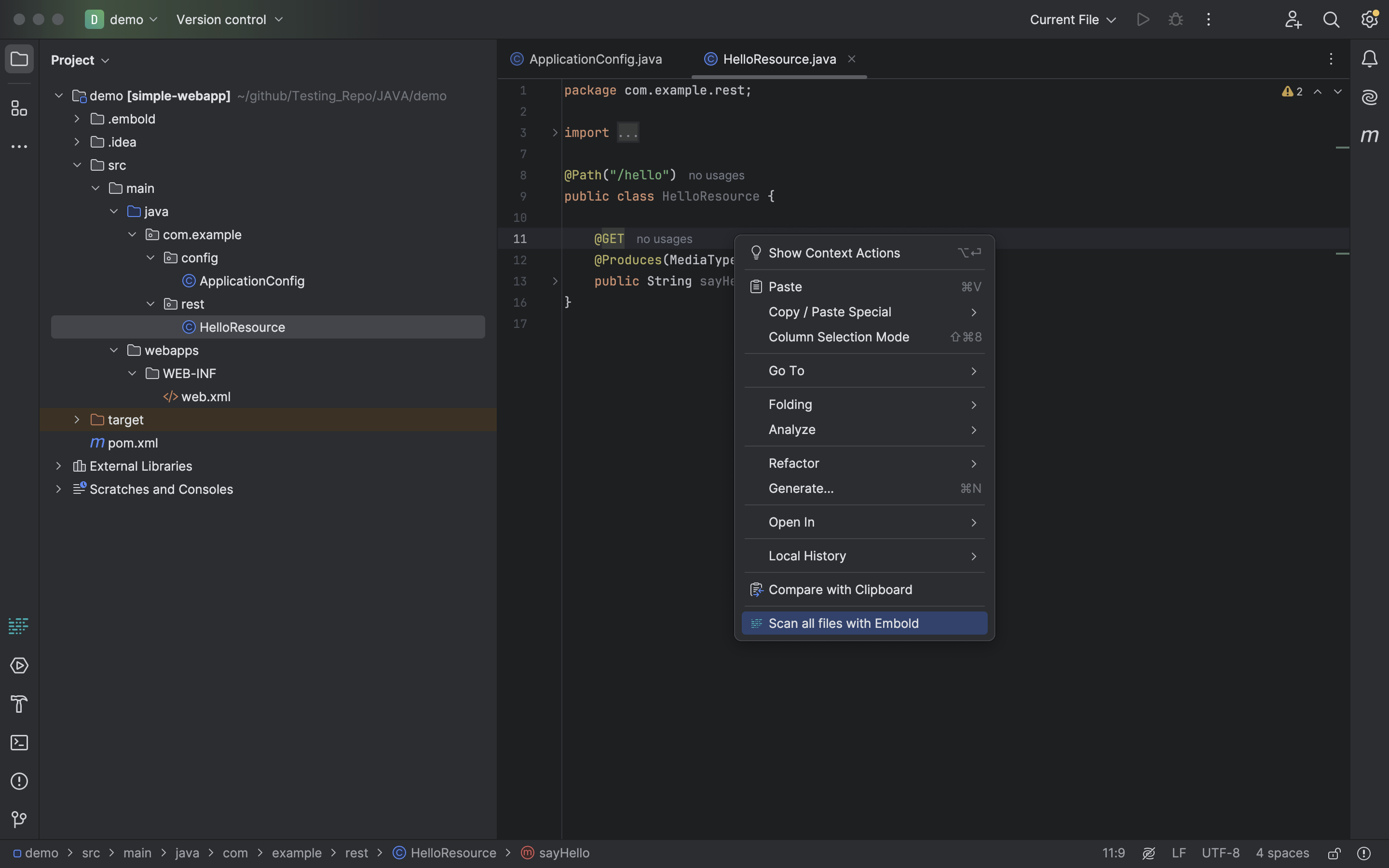
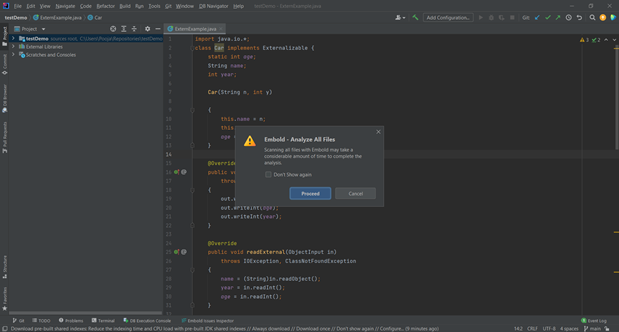
Full scans of large codebases can be lengthy. When prompted, confirm the action by clicking Proceed.
Results appear in Embold Issues Inspector and via the "Fly" (yellow balloon) notifications.
AutoDoc Generator
AutoDoc is an AI‑based comment/documentation generator (currently Java only for IntelliJ plugin).
Requirements
- Latest BrowserStack Code Quality IntelliJ plugin installed
- Java source files (supported language for AutoDoc)
See the AutoDoc documentation for usage patterns and limitations.
Features
- Real‑time analysis: Issues highlighted as you type.
- Issue Inspector: Consolidated view of findings.
- Quick navigation: Jump from list to source location.
- Custom rules: Project‑specific rule configuration.
- AutoDoc: AI documentation generation (Java).
Supported JetBrains IDEs
- IntelliJ IDEA (Community & Ultimate)
- Android Studio
Troubleshooting
Plugin Not Working
- Confirm latest plugin version installed.
- Ensure project structure recognized (e.g., proper SDK set).
- Verify network connectivity to server (proxy settings if needed).
Performance Issues
If performance degrades:
- Disable auto scan; rely on manual full scans.
- Increase IDE heap (Help → Change Memory Settings or adjust
idea.vmoptions).
Support
Need assistance?
- Review Getting Started.
- Provide plugin version, IDE version, and log snippets when contacting support via dashboard.